A conference room can look polished and still fail the moment a remote participant cannot hear the conversation, the display will not connect, or the Wi-Fi drops during a client presentation. Knowing how to plan a conference room means designing for what happens during real meetings, not just choosing a table, a screen, and a few chairs.
For Las Vegas offices, medical facilities, property managers, and growing businesses, the best conference room is one that works without a scramble for adapters or an emergency call to IT. It should support in-person collaboration, video calls, presentations, and the technology changes your team will make over time.
Start With the Room’s Real Job
Before choosing equipment, define how the room will be used. A four-person huddle room has different needs than a boardroom built for 16 people, and neither should be planned like a training room. The wrong starting assumption is one of the most expensive conference room mistakes because it leads to undersized displays, weak audio, poor camera coverage, and unnecessary rework.
Consider how many people will use the room on a normal day and during peak meetings. Think about whether the room will host remote employees, client calls, presentations, training sessions, or confidential discussions. Also decide who needs to operate the system. A room used by guests and rotating teams needs a simpler control experience than one managed by a dedicated executive assistant or IT staff member.
Future use matters too. A room that fits eight people today may need to accommodate hybrid meetings with multiple remote attendees next year. Leave capacity in the network, power, and cabling plan so growth does not require opening walls or replacing the entire system.
How to Plan a Conference Room Layout
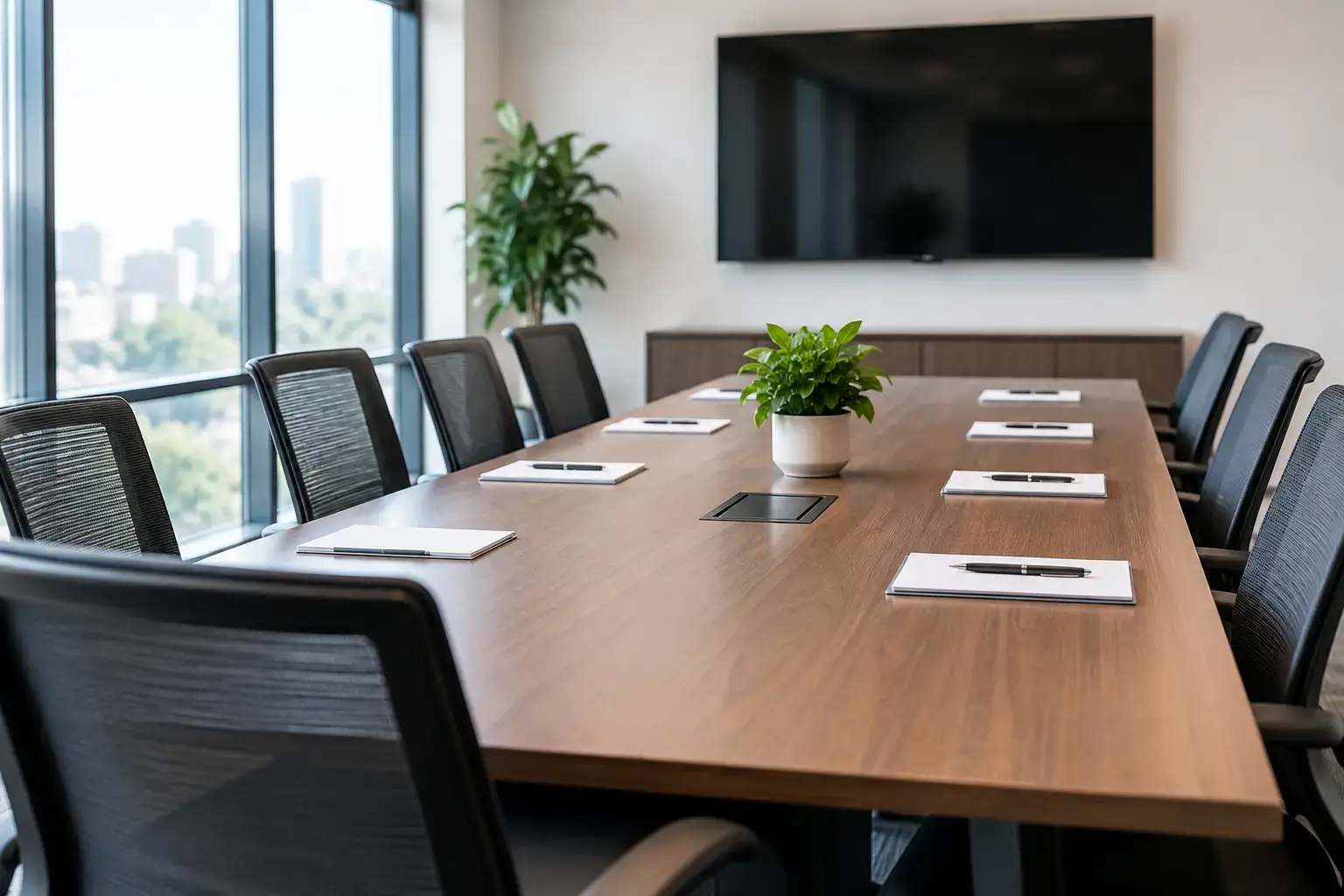
The layout should give every person a clear view of the display, camera, and other participants. It should also leave enough space for people to enter, sit down, pull out chairs, and access power without turning the room into a tangle of cables.
A rectangular table works well for most conference rooms because it creates clear sightlines to a front-wall display. For smaller rooms, a round or boat-shaped table can make conversation feel more natural. Avoid placing the table so close to the display that front-row attendees have to crane their necks, or so far away that shared content becomes difficult to read.
Display size should be based on viewing distance, room dimensions, and the type of material being shown. A large screen may be necessary for spreadsheets, architectural plans, or detailed medical information. For basic video calls and slide decks, an oversized display can be more distracting than useful. The goal is readable content from the farthest seat, not the biggest screen that fits on the wall.
Plan the camera location early. A camera mounted below or above the display usually gives remote attendees the most natural view of the room. Cameras placed in corners can create awkward angles and make it harder for remote participants to follow who is speaking. In larger rooms, a pan-tilt-zoom camera may be worthwhile, but only if it is matched with good room audio and a control system people can actually use.
Build the Technology Around Hybrid Meetings
A conference room is now part meeting space, part communications hub. The system should make it easy for employees to join video meetings, share content, and be heard clearly by people outside the room.
Start with the platform your organization uses most. Whether your team relies on Microsoft Teams, Zoom, Google Meet, or another service, the room equipment should be compatible with that workflow. A dedicated room system can reduce setup time and simplify scheduling, while a bring-your-own-device setup may be more flexible for small teams and guest presenters. The right answer depends on how standardized your meetings are and how much control IT needs.
Wireless screen sharing is convenient, but it should not be the only option. Include a reliable wired connection for laptops, especially when presenting high-resolution content or when a guest device has trouble joining the wireless sharing system. A well-planned table box or wall input can provide HDMI, USB-C, charging, and network access without leaving loose cables across the floor.
Do not overlook control. If starting a meeting requires finding multiple remotes, selecting the right display input, launching an app, and adjusting separate audio controls, people will lose time and call for help. A simple touch panel or a well-configured single remote can make the room feel far more reliable.
Treat Audio as a Priority, Not an Add-On
Poor audio is the fastest way to make a video meeting unproductive. Remote attendees can tolerate a less-than-perfect camera view. They will not tolerate echo, background noise, muffled voices, or several people talking into one small laptop microphone.
For a small room, a quality all-in-one video bar may provide the camera, microphones, and speakers in one clean installation. Medium and large rooms often need dedicated microphones and speakers placed to cover the entire table. Ceiling microphone arrays can be a clean option when properly designed, while table microphones may make sense when room use is predictable and cabling can be concealed.
Acoustics affect results as much as microphone selection. Glass walls, hard floors, exposed ceilings, and bare conference tables can cause sound to bounce around the room. Acoustic panels, carpet, window treatments, and softer furnishings can reduce echo without making the space look overly technical. In rooms where confidential conversations occur, acoustic planning can also help limit sound transfer to nearby offices.
Plan for Wi-Fi, Network Capacity, and Security
A video-ready conference room needs more than a strong signal near the door. It needs dependable Wi-Fi at the table, sufficient bandwidth for multiple participants, and a network designed to keep business traffic protected.
Test wireless coverage where people will sit and connect, not only where the access point is mounted. Concrete, metal framing, glass, dense walls, and neighboring wireless networks can affect performance. In some offices, the best solution is optimizing an existing Wi-Fi system. In others, the room may need an additional access point or a wired network connection for fixed AV equipment.
Dedicated conference room systems, displays, cameras, and wireless presentation devices should be installed on the appropriate network configuration. Guest access should be separated from internal business systems, and equipment should receive firmware updates and ongoing support. This is especially relevant for medical offices, financial services, and businesses handling private client information.
Get Power and Low-Voltage Cabling Right Before Finishes
The cleanest conference room installations are planned before drywall, paint, millwork, and furniture are finalized. That is when you can place electrical outlets, data drops, conduit, speaker wiring, camera cabling, and display backing exactly where they belong.
Hardwired connections are typically more dependable than relying on batteries or wireless links for permanent equipment. They also make the room easier to service later. Run conduit with room for future cables, particularly between the display wall, table location, equipment rack, and ceiling camera or microphone positions.
Equipment should have a logical home. A small locked cabinet, credenza, or network rack can protect the room computer, AV components, power conditioning, and network hardware while keeping the space presentable. Make sure there is ventilation and enough room for technicians to access equipment without dismantling furniture.
Design for Simple Support and Everyday Use
The most capable conference room is not necessarily the one with the most equipment. It is the one employees can use confidently on a busy morning when the client is already waiting on the call.
Label inputs clearly, keep instructions short, and give users a consistent experience from room to room when possible. Test the room with the actual laptops, meeting platforms, and user roles your organization relies on. A system can pass an installation test and still frustrate employees if it does not work well with their daily process.
A local technology partner can coordinate AV, networking, Wi-Fi, low-voltage cabling, and ongoing support under one plan, rather than leaving your team to troubleshoot between separate vendors. Las Vegas Tech Pros can help businesses plan and install conference rooms that are built around reliable meetings, clean wiring, and practical long-term service.
Give your next conference room a real-world test before the first important meeting: bring in a remote participant, share a presentation from two different laptops, sit in the farthest chair, and listen closely. That short test will reveal whether the room is ready to support your team when the conversation matters.