A router sitting in a utility closet may be enough for a small apartment, but it rarely supports a large home, smart devices, cameras, streaming TVs, and work-from-home demands at the same time. This home network equipment guide explains what each piece of hardware does, where it belongs, and how to avoid spending money on equipment that will not solve the real problem.
For Las Vegas homes and businesses, network planning also has to account for larger floor plans, detached garages, block walls, outdoor living areas, and equipment exposed to heat. The right setup is not necessarily the most expensive one. It is the one designed around how your property is built and how people actually use it.
Home Network Equipment Guide: Start With the Connection
Your internet service is the starting point, but it is not the whole network. The internet provider delivers a connection to your property, usually through a modem, fiber terminal, or provider gateway. That device brings internet service inside. Everything after it determines whether that service reaches every room reliably.
Before choosing equipment, consider your internet plan, the number of users, and the activities happening at once. A household with two people browsing and streaming has different needs than a home with multiple 4K TVs, gaming consoles, remote workers, smart thermostats, doorbells, and security cameras. A small medical office or retail site may need guest Wi-Fi, secure staff devices, cloud applications, and reliable point-of-sale connectivity.
Internet speed matters, but coverage and wired connections often matter more. Paying for fast service will not fix a weak signal on the far side of the house. It also will not prevent buffering if several bandwidth-heavy devices are competing on an outdated router.
The Core Equipment and What It Does
A properly planned network usually includes four main components. In simple setups, some functions may be combined into one device. In larger homes and business environments, separating them provides better coverage, control, and room to grow.
- Modem or fiber terminal: This connects your provider’s service to your network. It may be supplied by the provider, though some cable customers use their own compatible modem.
- Router or firewall: This manages traffic between the internet and your devices. It assigns local addresses, applies security rules, and often includes basic parental controls or network settings.
- Network switch: This adds wired Ethernet ports. A switch is useful when you need to connect TVs, desktop computers, printers, access points, cameras, media servers, or smart-home hubs by cable.
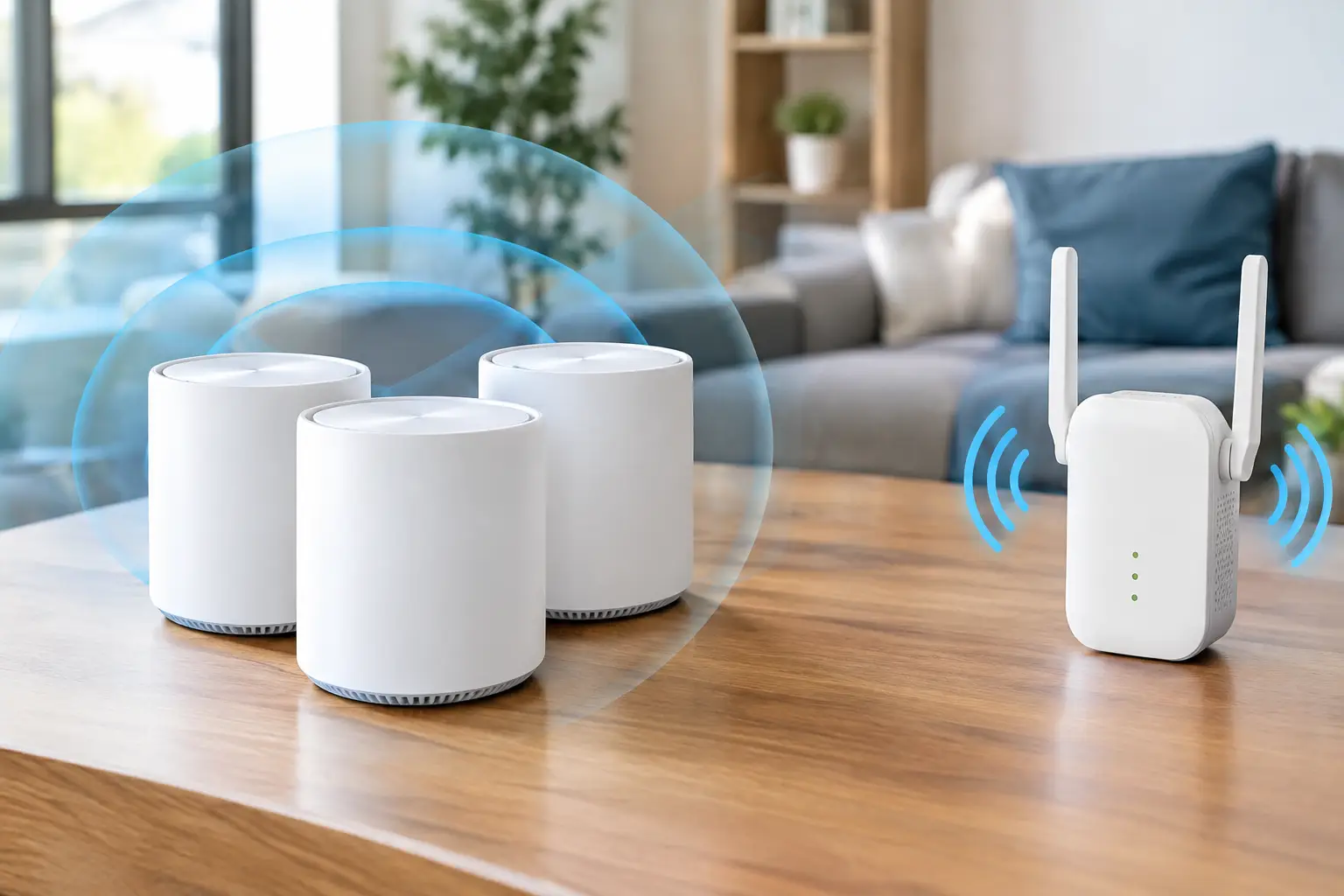
- Wireless access points: These create Wi-Fi coverage. Unlike a single router placed in one location, access points can be positioned throughout a property and connected back to the network with Ethernet cabling.
Many consumer routers include a small switch and Wi-Fi radio. That is convenient, and it can work well in a compact home. However, it becomes limiting when the router must be hidden in a structured wiring panel, placed at one end of a large property, or support dozens of connected devices.
Choose a Router Based on Control, Not Marketing Claims
Router packaging often promotes large speed numbers, but those figures do not tell you whether it will perform well in your building. Focus on current Wi-Fi standards, wired port speed, security updates, device capacity, and management features.
Wi-Fi 6 remains a practical choice for many homes because it handles busy networks more efficiently than older Wi-Fi 5 equipment. Wi-Fi 6E adds access to the 6 GHz band, which can reduce interference for compatible devices at shorter range. Wi-Fi 7 offers higher performance and newer features, but it is not automatically the best value if most of your phones, laptops, TVs, and smart devices do not support it yet.
For a small home, a quality all-in-one router may be the right answer. For a larger home, office, HOA common area, or property with cameras and access control, a dedicated router or firewall paired with wired access points is usually the stronger long-term approach. It gives you more flexibility to place Wi-Fi where it is needed rather than where the internet service enters the building.
Security should be part of the decision. Use current encryption such as WPA3 where supported, change default administrator credentials, and keep firmware updated. For business environments, network segmentation is especially valuable. Staff devices, guest Wi-Fi, security cameras, and smart building equipment should not all live on the same unrestricted network.
Why Access Point Placement Beats One Powerful Router
A common mistake is buying a more powerful router and hoping its signal will reach every room. Wi-Fi is a two-way conversation. Even if the router can broadcast farther, a phone, camera, or laptop still has to transmit back to it. Walls, metal, stone, mirrors, appliances, and dense construction can all weaken that return signal.
Mesh systems can improve coverage and are often a reasonable option when running cables is not possible. The trade-off is that wireless mesh nodes may use part of their capacity to communicate with one another. A wired backhaul, where each node or access point connects by Ethernet, is more dependable and generally delivers better performance.
For larger properties, ceiling-mounted or wall-mounted access points are often the cleanest answer. They can cover the main living areas, bedrooms, offices, patios, and detached spaces without relying on repeaters. Proper placement is based on a site survey and floor plan, not guesswork. Installing an access point directly next to a metal enclosure or behind a TV can create problems before the network is even turned on.
Wired Cabling Is the Network’s Foundation
Wireless devices get the attention, but cabling is what makes a network stable. Ethernet connections are ideal for fixed equipment that needs consistent performance: desktop computers, TVs, game consoles, access points, network video recorders, and security cameras.
Cat6 cabling is a strong standard for most residential and small-business installations. It supports gigabit networking and can support higher speeds over appropriate distances. Cat6A may make sense for new construction, larger commercial projects, or locations where 10-gigabit capability is a priority. The best choice depends on the project scope, cable length, budget, and future plans.
Power over Ethernet, commonly called PoE, is particularly useful for access points, cameras, and some access-control devices. A PoE switch can deliver data and power through one Ethernet cable, reducing the need for separate power outlets near each device. This keeps installations cleaner and gives critical equipment the option to stay online through a properly sized battery backup.
A structured wiring enclosure or dedicated network rack helps keep equipment organized. Label cables at both ends, leave service slack, and avoid burying network hardware where it cannot be reached for maintenance. These details save time when a device needs to be replaced or a problem needs to be diagnosed quickly.
Plan for Cameras, Smart Homes, and Guest Devices
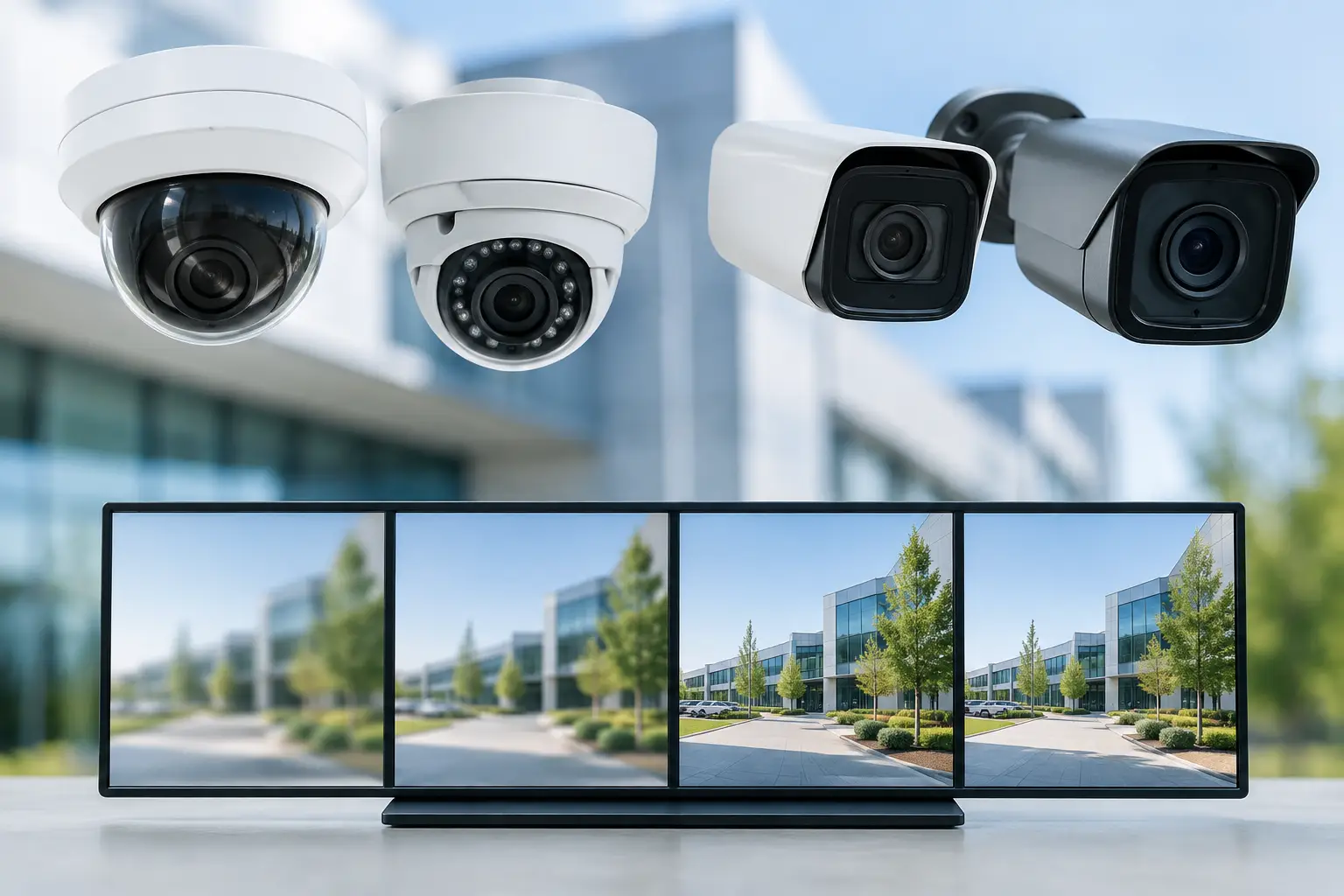
Security cameras and smart-home equipment can place steady demands on a network. A few cameras may be simple to manage, but a multi-camera system with 4K recording, remote viewing, and AI detection deserves its own plan. Wired cameras are generally more dependable than battery-powered or Wi-Fi-only models, especially when continuous recording is required.
Smart devices can also create security and reliability concerns. Doorbells, speakers, lighting controls, irrigation controllers, and appliances are convenient, but many operate on the 2.4 GHz band and may not support newer security features. A separate network segment for Internet of Things devices can limit exposure if one device is poorly secured or becomes outdated.
Guest Wi-Fi should be separate from personal or business devices. It allows visitors to connect without giving them access to printers, shared files, cameras, or network management systems. For offices, this is a basic operational safeguard. For homeowners, it is a simple way to make entertaining easier without sharing a primary Wi-Fi password.
Do Not Forget Power Protection and Ongoing Support
Network equipment depends on clean, reliable power. A surge protector offers basic protection, while an uninterruptible power supply can keep a router, switch, modem, and camera recorder running during short power interruptions. The right backup depends on the equipment load and how long you need connectivity to continue.
Equipment also needs periodic attention. Firmware updates, failed power supplies, a damaged cable, changing Wi-Fi settings, and growing device counts can all affect performance over time. A network that worked well after installation may need adjustment after a remodel, a new outdoor camera system, or a switch to faster internet service.
Las Vegas Tech Pros helps homeowners and businesses design, cable, install, and support networks as one coordinated system. That means the Wi-Fi, cameras, smart-home devices, AV equipment, and wired infrastructure can be planned together instead of treated as separate projects.
The most helpful next step is to map the places where connectivity fails or matters most: the home office, conference room, patio, front gate, camera locations, TV areas, and any detached building. That simple map gives a qualified technician the information needed to recommend equipment that fits the property rather than another temporary fix.