At 10:15 on a Monday, the phones are on WiFi, three people are on video calls, the printer drops offline again, and the front office is asking why the guest network is slower than cellular. That is usually when an office starts looking for an office WiFi upgrade example – not because the network is a little annoying, but because poor coverage is now affecting work.
For most small and midsize offices, the real problem is not just “bad internet.” It is usually a mix of outdated equipment, poor access point placement, too many devices on one router, and a layout that changed over time while the network stayed the same. A proper upgrade fixes those root causes. It also gives the business a network that matches how the office actually operates now, not how it operated five years ago.
A real office WiFi upgrade example
Picture a 4,500 square foot office in Las Vegas with 22 employees, six private offices, a conference room, a reception area, and a back workspace used for inventory and admin tasks. Internet service is fast enough on paper, but staff still complain every day. Video calls freeze. Cloud files take too long to open. Wireless printers disappear. The guest network drags down performance when clients visit.
The original setup is common. One ISP-provided gateway sits in a telecom closet on one side of the building. A consumer-grade mesh unit was added later to help the conference room. Over time, more devices were connected, including laptops, phones, VoIP handsets, tablets, printers, smart TVs, and a few security-related devices. Nothing was designed as a whole system.
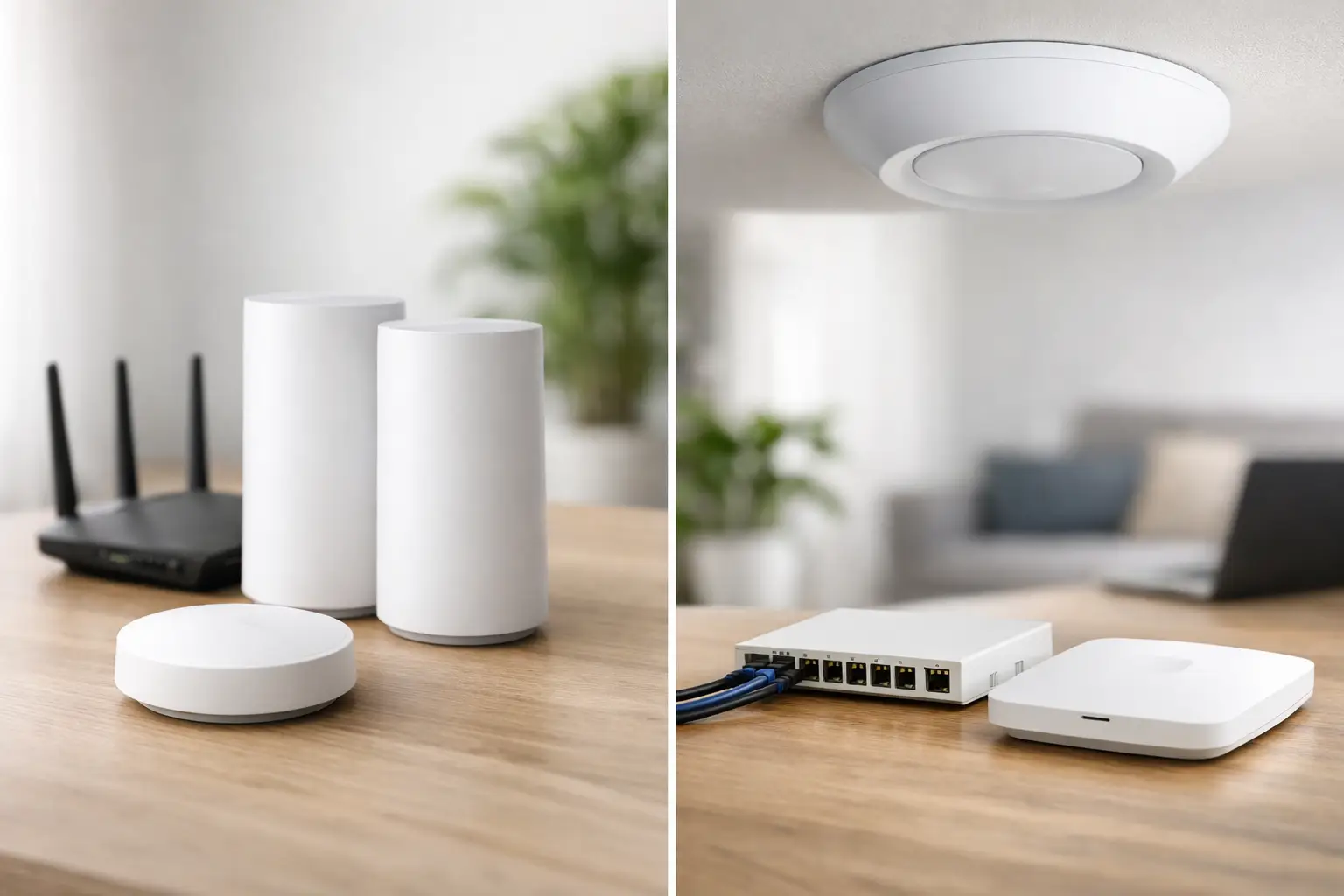
After a site review, the upgrade plan is straightforward. The office gets business-class firewall and routing equipment, structured switching, and three properly placed wireless access points instead of one overloaded gateway and an improvised mesh add-on. Network traffic is separated so staff devices, guest access, printers, and voice traffic are not all fighting on the same flat network. Coverage is tested across the office, not guessed at.
The result is not flashy. It is simply stable. Conference calls stop dropping. Roaming between rooms improves. Front-desk staff can work without resetting equipment. The guest network no longer interferes with internal operations. That is what a good WiFi upgrade is supposed to look like.
What was actually wrong before the upgrade
A lot of offices assume coverage is the only issue. Sometimes it is, but just adding another wireless device rarely fixes the full problem. In this office WiFi upgrade example, there were four separate failures working together.
First, the gateway was doing too much. It handled routing, wireless access, DHCP, and basic network management for an office that had outgrown it. Consumer hardware can work in very small spaces, but once device counts rise and usage gets heavier, performance becomes inconsistent.
Second, access point placement was poor. The signal had to travel through multiple walls, storage areas, and enclosed offices. Even strong internet service cannot overcome weak wireless design.
Third, there was no traffic segmentation. Guests, staff, printers, and voice devices all shared the same environment. That creates congestion, security concerns, and troubleshooting headaches.
Fourth, no one had a clear picture of how many devices were actually on the network or where the dead zones were. Offices often add equipment over time without reevaluating the network as a system.
What the upgrade included
The best upgrades are built around the space, the device count, and how people move through the office. In this case, the work started with a basic site assessment and ended with a network that was easier to manage and easier to support.
Business-grade routing and switching
The old all-in-one gateway was replaced with dedicated network hardware designed for office use. That matters because routing, security policy, and traffic handling are more reliable when the core network equipment is built for heavier demand.
A managed switch also made it possible to support power-over-ethernet access points cleanly and to control network ports with more precision. For offices with VoIP phones, cameras, or future expansion plans, this is usually a better long-term move than stacking unmanaged hardware and hoping for the best.
Proper wireless access point placement
Three ceiling-mounted access points replaced the old patchwork setup. Placement was based on usable coverage and expected device density, not just square footage. The conference room got dedicated attention because high-demand spaces often expose wireless weakness first.
This is one of the biggest differences between a quick fix and a real upgrade. More WiFi equipment is not automatically better. Too many poorly placed access points can create interference. Too few leave dead zones. The goal is balanced coverage with clean handoff as users move around.
Network segmentation
The office network was divided into separate segments for internal staff, guest WiFi, printers, and voice traffic. That helped performance, but it also improved security and made support simpler.
If a guest network experiences heavy use, internal operations do not need to suffer. If a printer causes issues, it can be isolated faster. If the office adds cameras or access control later, the network is already structured to support that growth.
Cabling and cleanup
Wireless performance often depends on wired infrastructure more than people expect. In this example, part of the improvement came from cleaning up the low-voltage side of the job. A few cable runs were corrected, old hardware was removed, and the network cabinet was reorganized so future service work would not become a scavenger hunt.
For offices that rely on uptime, this step matters. Fast troubleshooting starts with clean infrastructure.
What changed after the upgrade
Employees noticed the difference right away, but not in a dramatic way. They stopped noticing the network at all. That is usually the sign the job was done correctly.
Video calls became stable enough to trust. File sync times improved because wireless throughput was more consistent. Staff could move from the front office to conference spaces without losing connectivity. Guests had internet access without dragging down office operations. The support burden also dropped because there were fewer “random” problems to chase.
That last point is worth paying attention to. Weak WiFi creates hidden labor costs. Employees repeat tasks, reconnect devices, move rooms for stronger signal, or delay meetings because the network is acting up. The monthly internet bill may stay the same, but the cost of poor performance shows up elsewhere.
How much an office WiFi upgrade usually costs
It depends on the office size, wall construction, cable access, equipment quality, and whether the project includes switching, firewall work, or new cabling. A small office with an uncomplicated layout may only need a modest hardware refresh and one or two well-placed access points. A larger office or medical practice may need a more structured network design with multiple VLANs, better security controls, and coordinated cabling work.
That is why a serious assessment matters. The cheapest proposal can turn into the most expensive one if it only masks the problem for six months. On the other hand, not every office needs enterprise-level complexity. The right answer is a system that fits the environment and the operational risk.
When an upgrade makes sense
If your office has constant dead zones, recurring call quality issues, unreliable wireless printers, or too many devices piled onto a single router, the network is already telling you it needs attention. The same is true if you recently expanded, remodeled, added smart devices, moved to cloud-heavy workflows, or started relying more on video meetings.
A lot of businesses wait until total failure. That is understandable, but it usually means the upgrade happens under pressure. Planning ahead gives you more options, cleaner scheduling, and a network that supports the business instead of interrupting it.
Why local, hands-on service matters
WiFi problems are physical as much as digital. Wall materials matter. Device density matters. Cabling quality matters. Interference from neighboring suites matters. A remote diagnosis can help, but many office upgrades need someone on-site who can test the environment, evaluate the wiring, and fix the full stack instead of blaming the ISP or swapping random hardware.
That is where a company like Las Vegas Tech Pros can be useful. When the same provider understands networking, low-voltage cabling, IT support, and connected systems in the building, the office does not have to coordinate three different vendors just to get stable wireless coverage.
A good office WiFi upgrade is not about chasing maximum speed on a phone test. It is about giving your team a network that holds up during calls, supports daily operations, and stays manageable as the office grows. If your current setup is held together by workarounds, that is usually the clearest sign it is time to fix it properly.